TL;DR: The monthly costs of being subscribed to all these AI services can really add up. I decided to replace them all with Open WebUI and only pay for the tokens I actually use.
Backstory
As an AI Engineer, I need constantly need to be up-to-speed with the latest AI models and tools. Today, there are so many different providers and models to choose from, each specializing in different skills or performing better on different tasks. And, it seems like every month, a new leader emerges to take the throne.
In the early days, OpenAI was the dominant and leading LLM provider, with a huge moat over the competition. At $20 a month, I thought it was a no-brainer to subscribe to their Pro plan and get GPT 4.
I spend 85% of my working time (both 9-5 and my side stuff) working on code, so when GitHub Copilot came out, $10 a month seemed like a steal.
When Anthropic dropped Claude 3.5 Sonnet, I got a Claude Pro plan. Another coding focused model could really help my workflow, and I couldn’t use GitHub Copilot in other environments like Databricks.
Google then came out with Gemini and deeply integrated it with the Google Workspace products I already knew and loved. $20 a month? Sign me up.
Midjourney is way better than DALL-E and I need to make images sometimes. $10 a month.

Coming to my senses
Finally, it hit me while working on the budget, that I was spending $80/month (or $960 a year) on AI services. That’s a lot of money.
I wasn’t even using all of them that much. I’d use OpenAI and GitHub Copilot the most, and would occasionally switch to use the others if the task called for it. For some reason, though, I couldn’t cancel any of them. I felt like I needed them all.
From a logical standpoint, if we have two pricing options—variable (API) and fixed (monthly plan), the monthly plan is more cost-effective if our usage exceeds the equivalent cost of that usage in the API. On the flip side, the API pricing is more economical when our usage is lower than what would justify the monthly plan.
GPT-4o, the model I used most frequently, costs $2.50/1M input and $10.00/1M output. If we assume 1:1 input to output tokens (likely skewed in favor of output tokens, since input tokens accumulate as a chat thread gets longer), that’s $12.50/M tokens, essentially valuing the Plus subscription at 1.6m tok/mo.
Or, to put it differently, I’d have to use 53k tok/day to break even. During my 9-5, I utilize my company’s internal chatbot that I don’t have to pay for, so my Plus membership is idle for about 8 hours of my 16 hour day. Could I even use 53,333 tokens a day with the remaining 8 hours?
That’s just looking at it with one provider, OpenAI. Since I feel like I need all services, I’d have to do those same caluclations for Claude, Gemini, Midjourney, etc and add them all up. I’m not sure the exact number, but I simply can’t use that many tokens in a day.
But, what if I could only pay for the tokens I actually use? Instead of getting on the hook for a fixed monthly price to each vendor, I could just get an API subscription, use the API, and only pay for what I actually use.
If Gemini sucks during a particular month, I just don’t use it. If I need to use Claude for a few tasks, I only pay for those tasks.
Luckily, I stumbled upon a tool called Open WebUI a few months back. Essentially, OWUI is a web-based user interface that’s compatible with many LLMs and providers, so long as they conform to the OpenAI API spec (most of them do). OWUI is even compatible with Ollama, enabling you to run local LLMs like Llama 3.3 or DeepSeek R1 on your own hardware and not even pay API cost.
Making the switch
My server hardware of choice is the trusty and versatile Raspberry Pi 5. Since I’m not using Ollama to run a local LLM at this point, I don’t need a beefy GPU. The Pi 5 is more than capable of running the Open WebUI app and handling API requests.
Setting up the Pi
I formatted the SD card, then installed Ubuntu with the Raspberry Pi Imager. I used peripherals to set it up, enabled SSH, then tucked it away in the network closet and assigned it a fixed IP.
After SSH’ing into the Pi, we need to install Docker.
Setting up Docker
First, update the package list.
sudo apt-get update
sudo apt-get upgrade
Then, install Docker.
curl -sSL https://get.docker.com | shAdd your user to the Docker group so we can run Docker commands without sudo.
sudo usermod -aG docker $USERTest out the installation by running the hello-world container.
docker run hello-worldSetting up Open WebUI
Make a directory to put all the OWUI files.
sudo mkdir -p /opt/stacks/openwebui
cd /opt/stacks/openwebui
Make a Docker Compose file to run OWUI.
sudo nano docker-compose.ymlservices:
open-webui:
image: ghcr.io/open-webui/open-webui:main
container_name: open-webui
volumes:
- ./data:/app/backend/data
ports:
- 3000:8080
extra_hosts:
- host.docker.internal:host-gateway
restart: unless-stoppedStart the OWUI container.
docker-compose up -dRunning OWUI
Navigate to http://<your-pi-ip>:3000 in your browser.
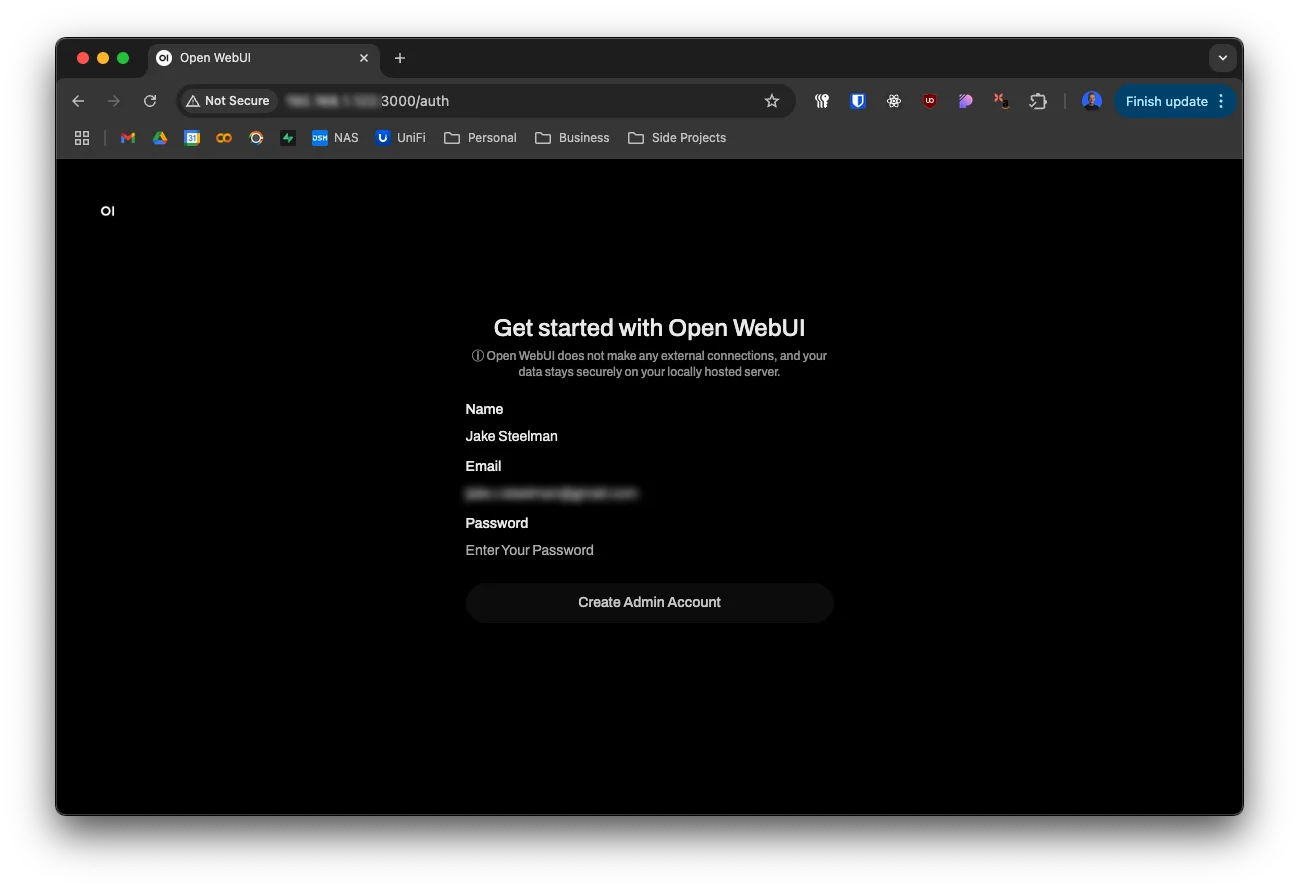
Bam! We’ve got Open WebUI running successfully. Create a user account, which also will be your admin account.
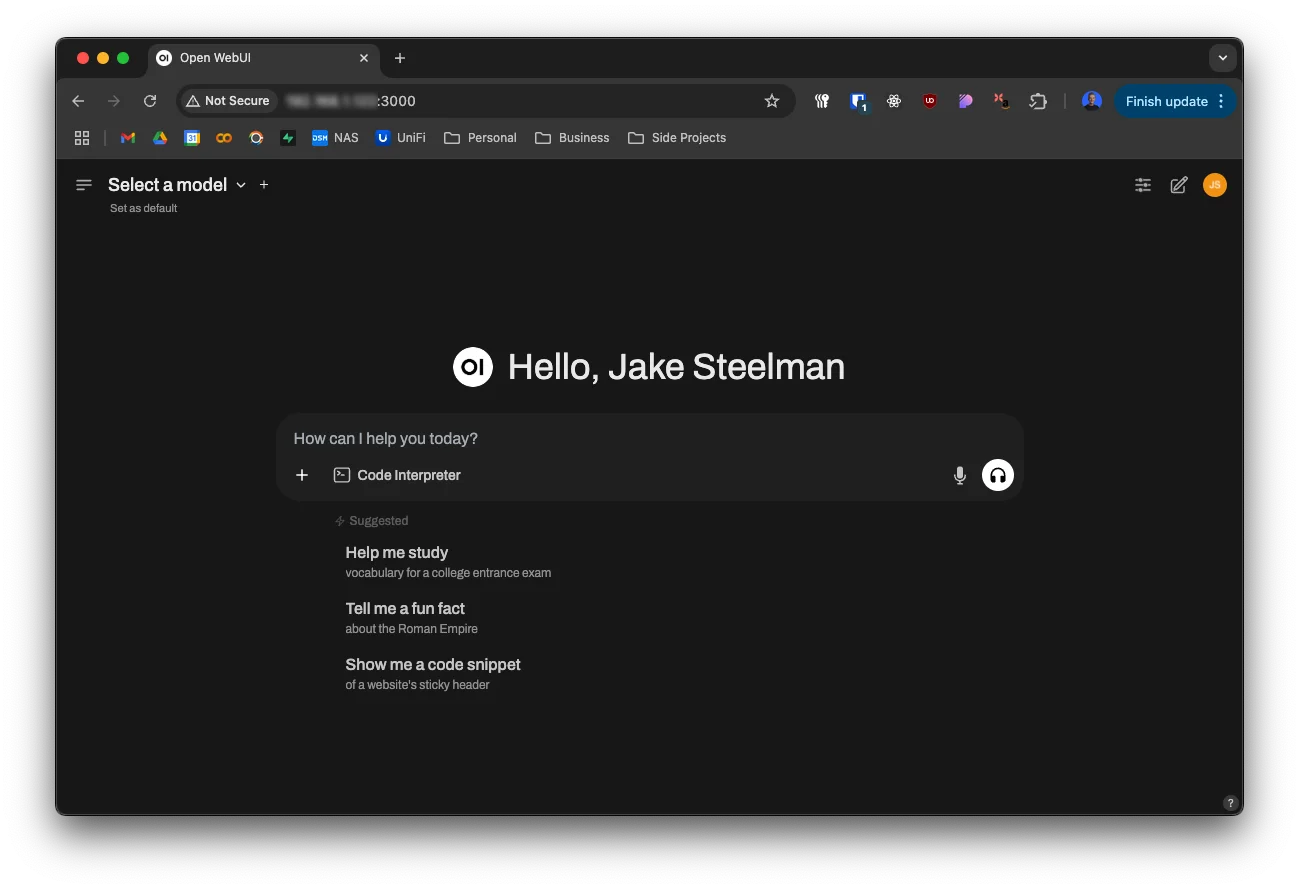
If all goes well, you should see the new Chat screen:
Adding providers
We need to add our OpenAI API key to the OWUI app.
Click your user icon in the top right, click Admin Panel, then Settings.
From there, click Connections in the sidebar.
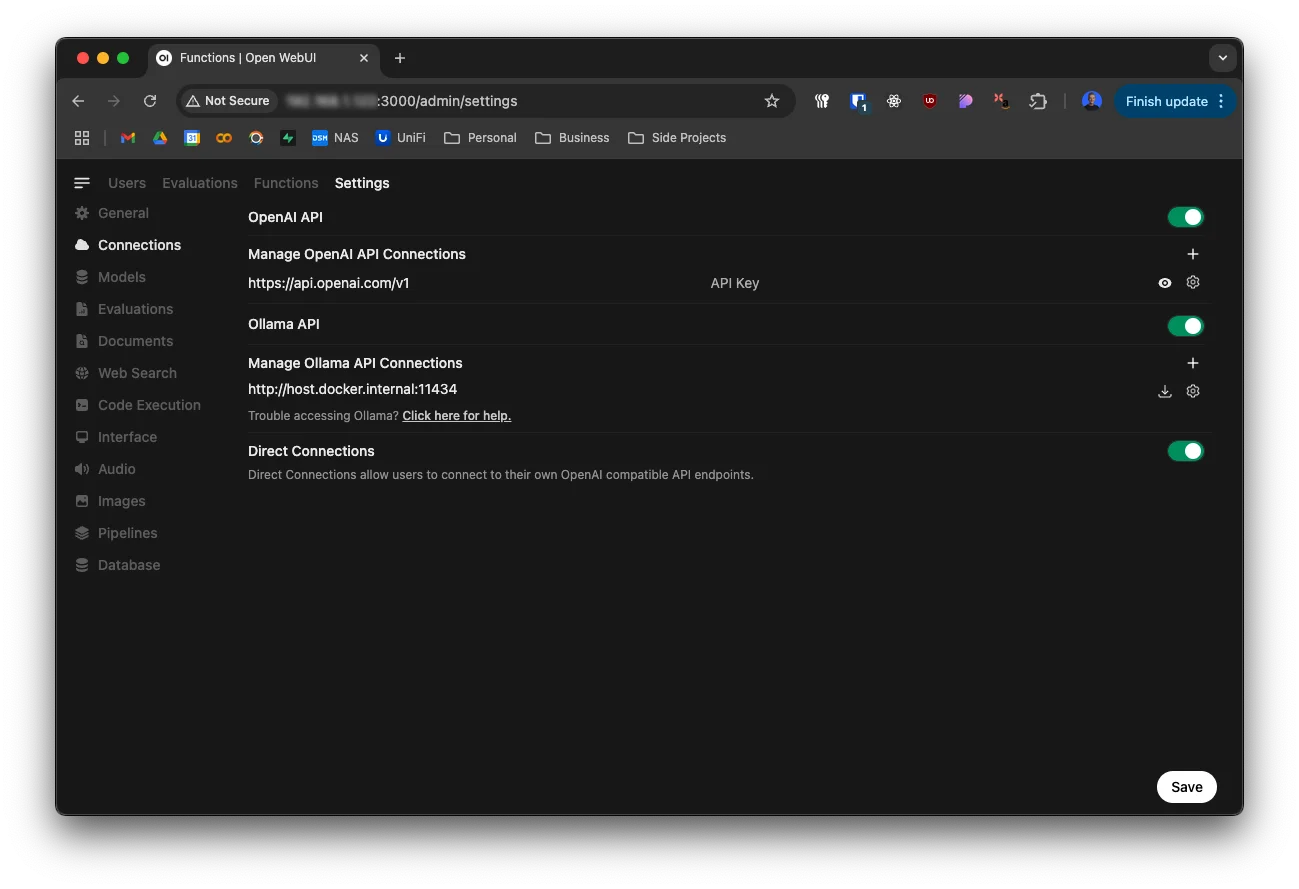
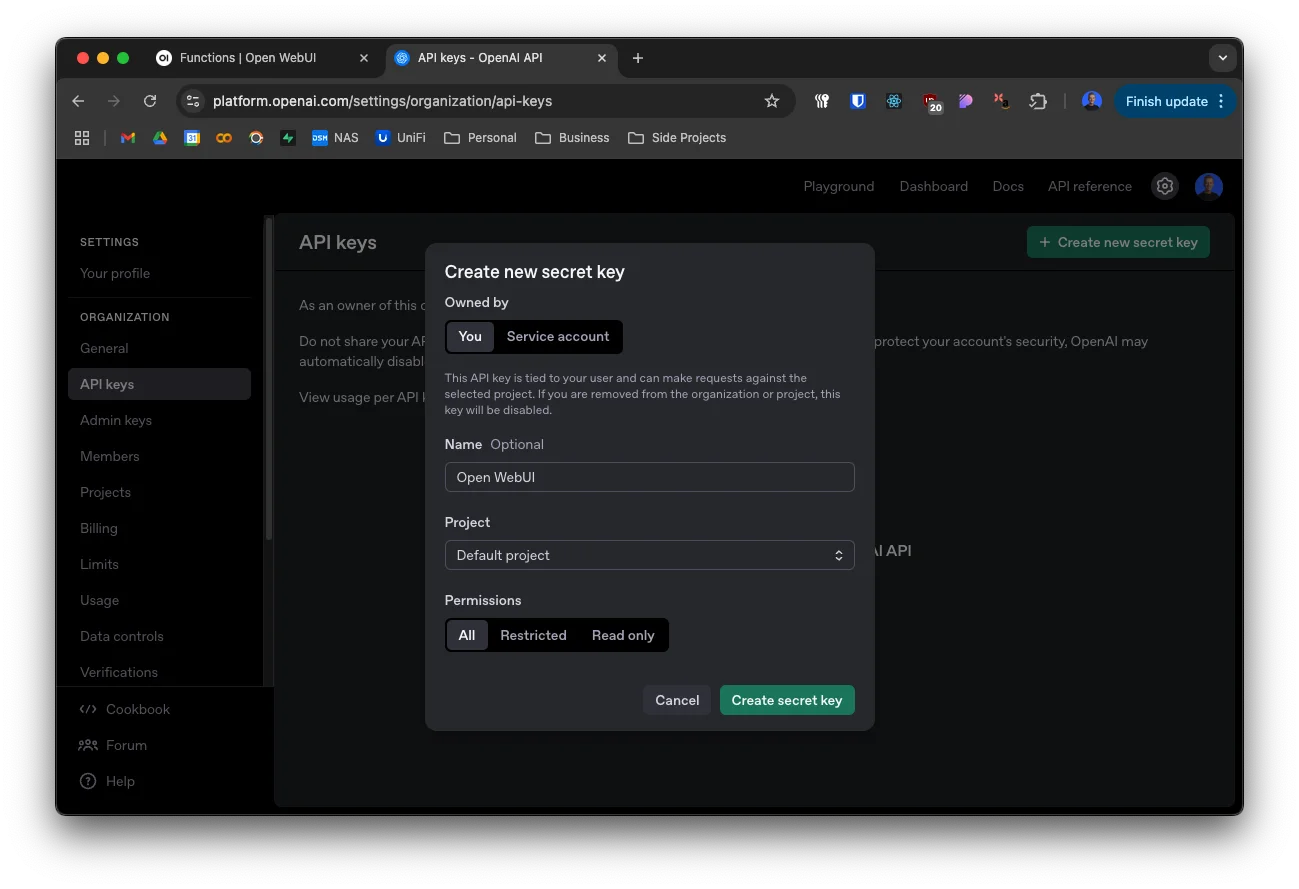
Under “Manage OpenAI API Connections”, click “API Key” and paste your OpenAI API key.
If you haven’t already, create one from the OpenAI API Platform.
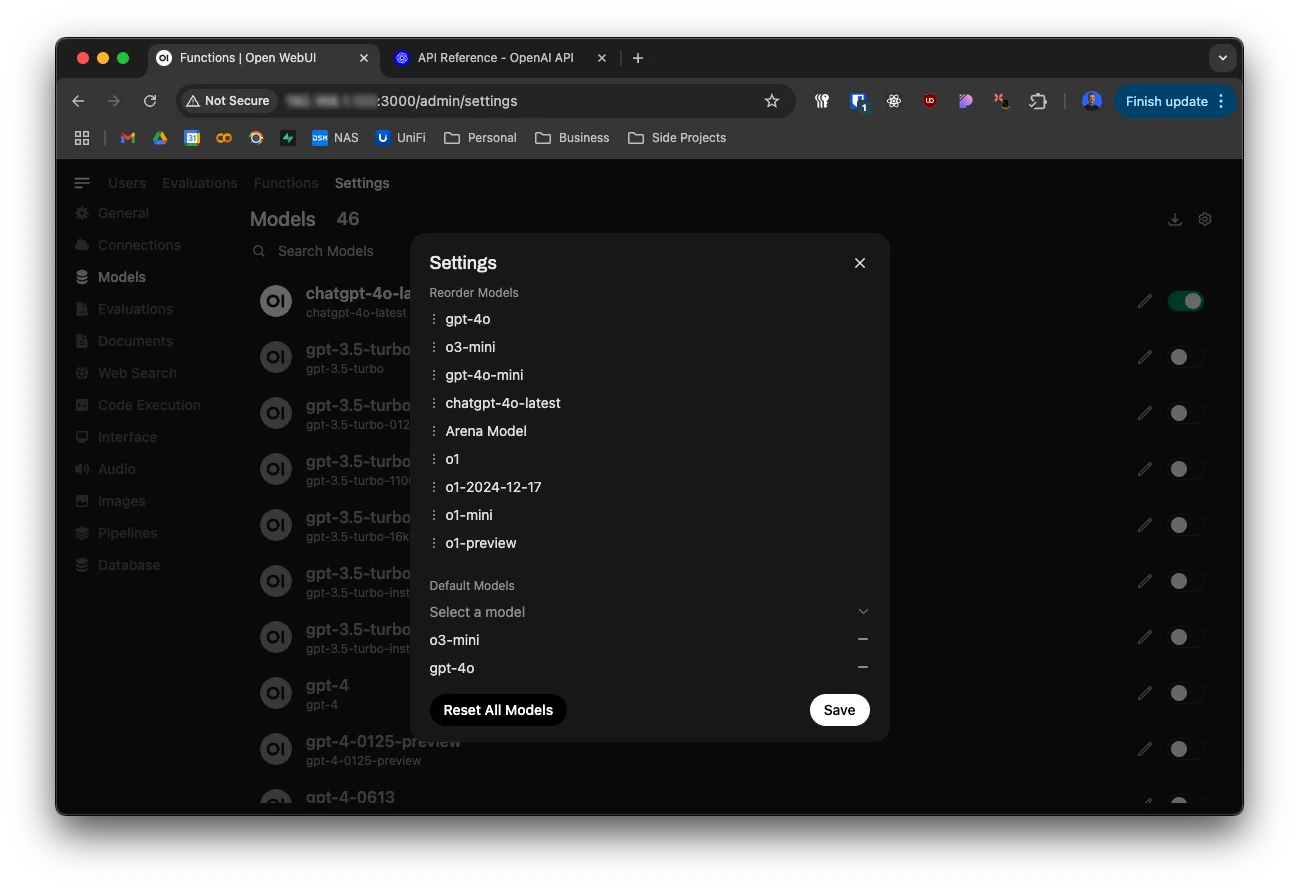
You also need to configure the available models. Below the “Connections” item in the sidebar, there’s a “Models” item. Click it.
Here, you can edit the available models (I just turned off outdated or irrelevant models). You can also set default models, and change the order they appear in the model selector.
Enabling web search
In order to match the software functionality with the monthly subscriptions, we need to enable some tools, one of them being web search.
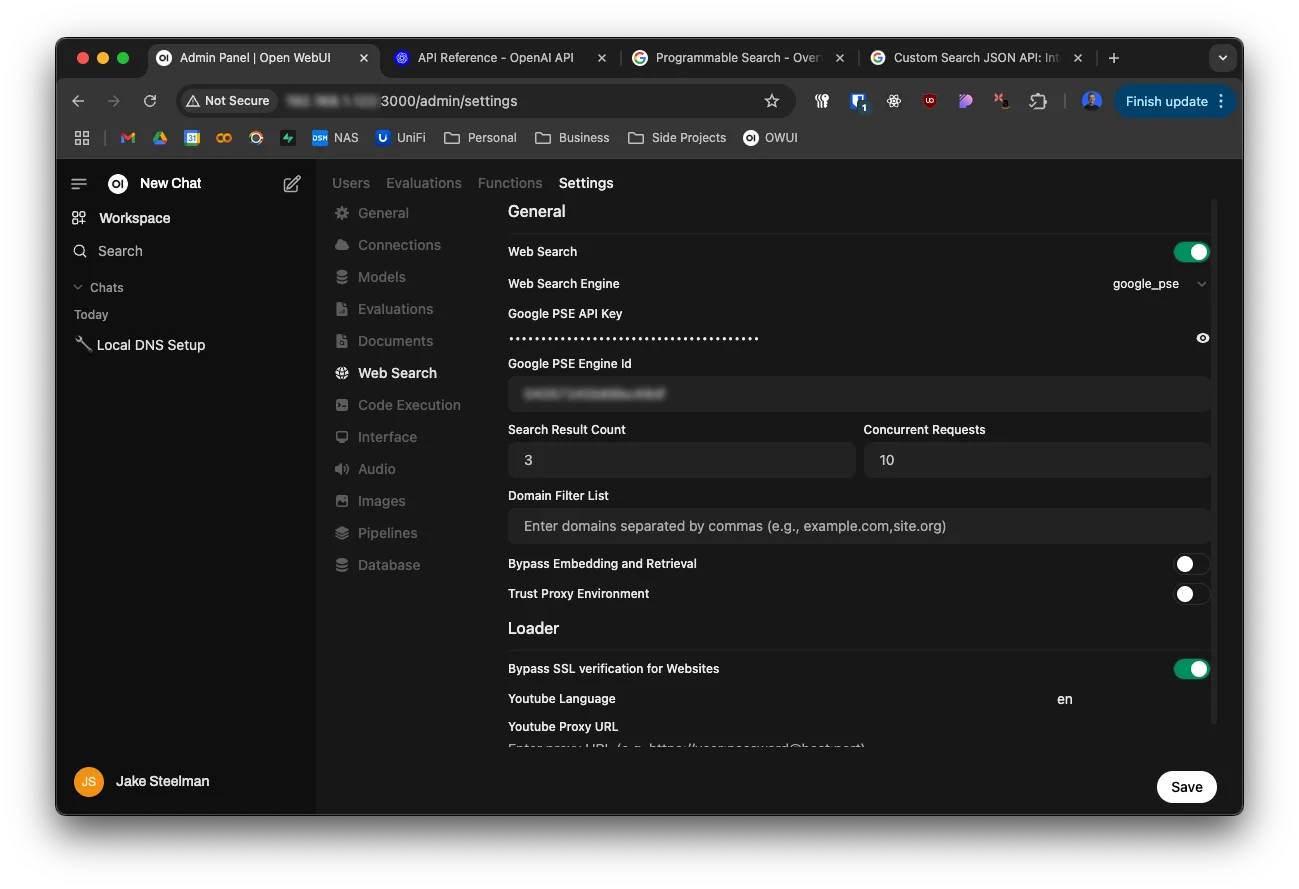
We can enable the Google Programmable Search Engine (or PSE) for short. You can get up to 10,000 requests per day, entirely free of charge.
In the sidebar, click the Web Search section. Enable web search, then change the Web Search Engine to google_pse.
Next, go to the Google PSE website, and click “Get Started.” Follow the steps to create your PSE. Once it’s created, copy the Search engine ID and paste it into the OWUI settings. Next, generate an API key by scrolling down to the “Programmatic access” section and clicking “Get started.” Copy the API key and paste it into the OWUI settings.
Adding other providers
If the provider you want to add is compatible with the OpenAI API specification, you can add it to OWUI just like we did with OpenAI.
Using outside of the home network
If you want to use OWUI outside of your home network, you have a few options. You could port-forward and add a custom domain, but I felt like that was overkill and I didn’t want to have to mess with the security implications of opening up my home network to the internet.
Instead, I chose to just set up a VPN connection to my home network. Since I have a Ubiquiti Unifi setup, this is super easy.
- Enable the Teleport service in the controller
- Download the Wifiman app on your iPhone.
- Sign in with your Ubiquiti account.
- Allow the app to add a VPN configuration to your iPhone.
- Bam, you’re connected to your home network.
Since OWUI is a PWA, I can just add it to my home screen and use it like a native app.
Conclusion
I’ll update this post in a few months with a cost comparison, but I’m confident that I’ll save a lot of money by switching to Open WebUI. I’m also excited to have all my AI tools in one place, and to only pay for what I actually use.